

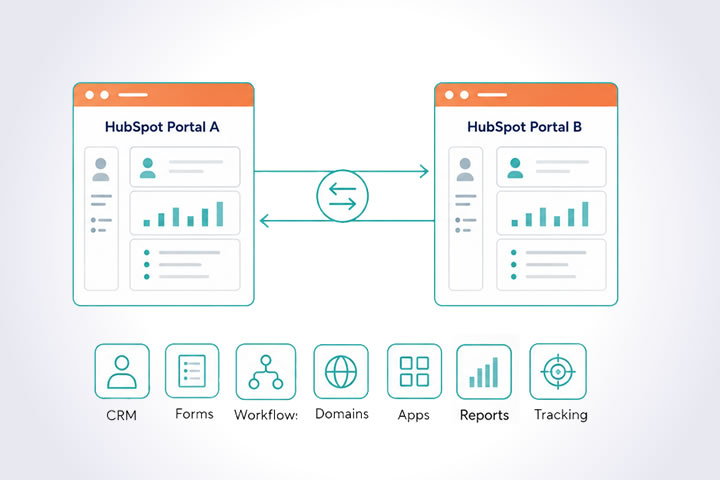


HubSpot portals contain core data (contacts, companies, deals, support tickets), but also many other capabilities that centralize company activity. The problem arises when you want to switch your HubSpot portal, duplicate it for a new company, or merge the activities of two companies.
How do you migrate capabilities from one HubSpot portal to another? For copying the actual data, migration tools exist (see below). But there is no single button that moves a complete portal.
From OPTI's experience, the biggest problems do not appear at the data import stage, but at the dependencies: forms embedded in external websites, workflows that use old emails/lists/users, private applications that need to be reconnected, tracking code left in the old portal, and reports that cannot be recreated identically.
This complete guide based on OPTI's experience walks you through the three components of a CRM migration. How do I migrate the data? How do I migrate the functionality? How do I migrate the team's operations?
1. Pre-Migration Inventory: CRM, Forms, Workflows, Domains
You need to take inventory even before running any copying tool, so you know what exists in the old portal and what matters for the business. During the inventory phase you classify what can be migrated automatically, what needs to be rebuilt manually, and what can be archived (left behind in the old portal).
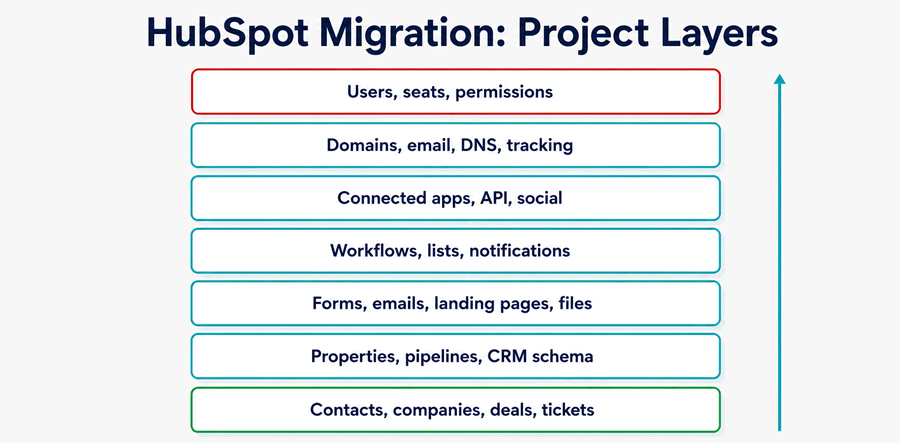
1.1 Priority Order and HubSpot Migration Plan
- The commercial contract with HubSpot (users, seats, permissions) which determines what features you will use in the new portal
- Manually configurable entities, where the data copying tool will only be partially helpful. E.g.: domains, social networks, workflows (see below)
- The actual data where the copying tool is essential for speeding up the transfer
- Ideal post-migration functioning for each feature
A good inventory is concrete enough to be used as a migration plan:
| CRM | Contacts, companies, deals, tickets, activities | |
| Properties | Custom fields, dropdowns, required values | |
| Lists / segments / campaigns | Active lists, smart lists, campaign lists, campaign resources | |
| Forms | Versions, fields, page where it appears, submissions, portal ID | |
| Emails | Marketing emails, automated emails, templates | |
| Workflows | Triggers, actions, emails, lists, users, applications | |
| Landing pages | Old URL, new URL, form, status | |
| Reports | Dashboards, filters, properties, access | |
| Applications and connections | Social, ads, WordPress, private apps, marketplace apps | |
| Domains | Content domain (CMS), email domains, tracking code | |
| Users | Old user, new user, permissions, seats, views, panels |
1.2. Are There Any Blockers?
Identify all points that have a chance of blocking the migration and determine how to avoid them. We recommend involving all key people, both technical and non-technical, in the discussions:
- Which portal is the source and which is the destination, and with which HubSpot subscriptions?
- What differences exist between company processes pre-migration and post-migration?
- What features migrate automatically, what needs to be rebuilt manually, and what gets archived?
- Who has access to external resources (domains, private applications, social media, ads, email accounts, etc.)?
- When is there a sufficient time window for migration?
2. Portal Migration Methods
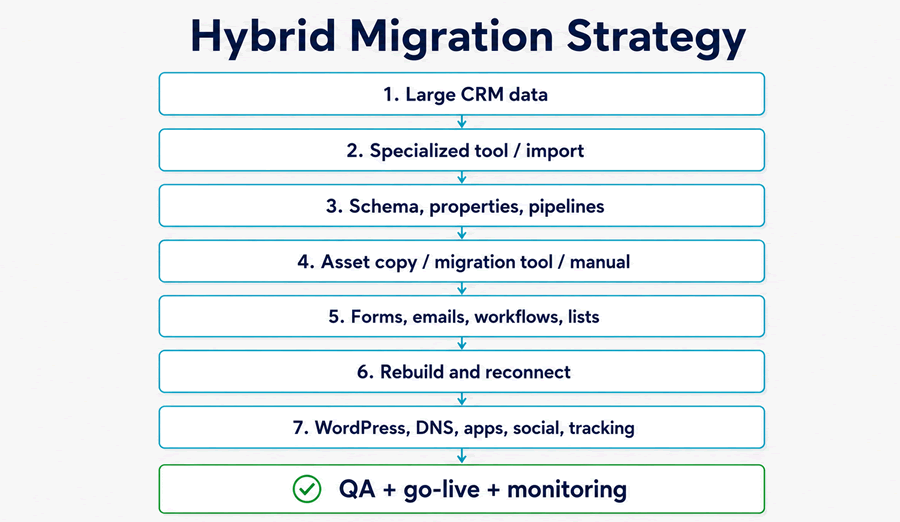
A complex migration always combines three methods: export/import, a migration tool (migrator), and manual reconstruction. As a HubSpot partner, we plan each of them based on the goal. For example, merging two companies requires different procedures than migrating a single modified company.
2.1 Export/Import and Asset Copy in HubSpot
Exporting available content in HubSpot for many objects is mandatory as a backup and useful for a future audit.
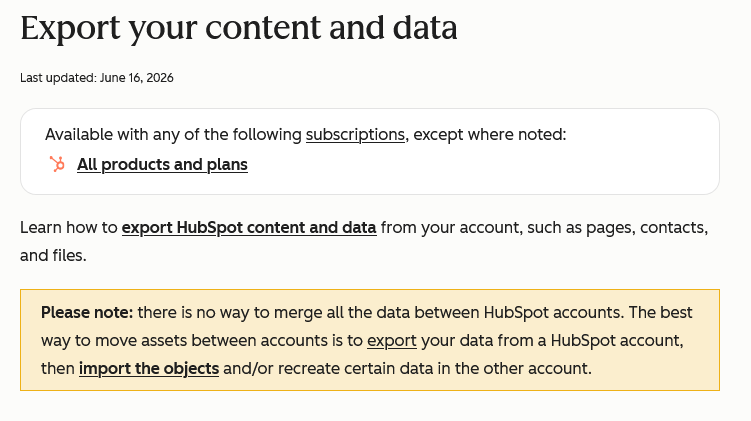
If the multi-account management option is active, HubSpot allows copying many assets between accounts without performing a full migration. For example, when you copy a form, the form structure is copied, but not the data collected through it.
2.2 Migrator: Specialized Migration Tool
A specialized tool significantly reduces the effort of importing millions of rows. It can migrate all objects available through the HubSpot API (see HubSpot documentation).
Two solutions you can evaluate are:
Datawarehouse.io - HubSpot to HubSpot Migrator
A popular tool for bulk migration. We quote their limitations: "API restrictions prevent migration of campaign data, historical web traffic data, CTAs, landing pages, reports and dashboards." All of these must be moved manually or, in the case of historical web traffic data, will simply be archived (they cannot be created manually either).
At the time of this guide, the price is split across three packages, from $600 to $1000 per migration, with a money-back guarantee in case of failure. Only the maximum Enterprise plan allows, for example, the migration of custom objects from HubSpot. Check the current price on the official website
SyncMatters - HubSpot to HubSpot Migration Services
Offers a consultative approach, with the ability to visualize the correspondence between old and new objects, with optional planning alongside a consultant. The same API limitations as above certainly apply for the self-service option.
At the time of this guide, the price is split across three packages, with the self-service option varying depending on the number of objects transferred between $299 and $2999. Assisted packages start at an extra cost of $750 above the variable base cost. Check the current price on the official website
2.3. What Moves Manually?
You can plan manual reconstruction for objects that have no read/create API:
| What moves manually | Recommendation | |
|---|---|---|
| HubSpot settings, permissions, user settings | Settings are redone manually by comparison; users must redefine their views and reconnect their applications (e.g.: calendar) | |
| Forms: fields, page where it appears, portal ID | Cannot be fully migrated automatically. Embeds must be replaced in all external websites | |
| Workflows: trigger, actions, emails, lists, users, applications | Not fully migratable, may have dependencies that need to be re-wired | |
| Landing pages: old URL, new URL, form, status | Must be visually rebuilt or moved to an external platform (e.g.: WordPress, e-commerce) | |
| Reports and dashboards | Must be recreated or validated manually. Those based on traffic history will be archived. | |
| Applications, social networks and connections | All external applications and their developers must reconnect them. All social networks and external resources bringing data into HubSpot must be reconnected. | |
| Domains: content domain, email domain, tracking | DNS must be modified and domains reconnected. The new tracking code must be placed in all external websites |
The correct approach in practice is hybrid:
3. CRM Migration
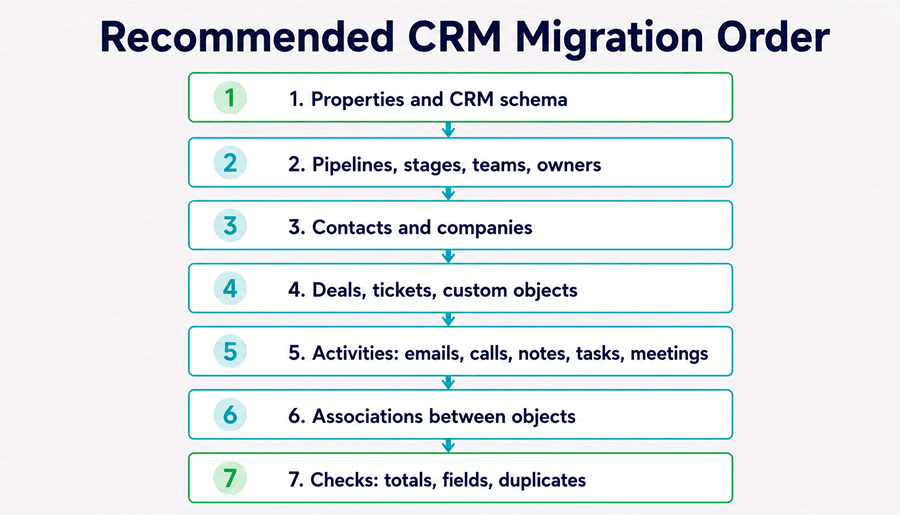
CRM data must be moved in a logical order, from schema, to bulk data, then to transfer refinement procedures: verifying totals, owners, associations and correcting duplicates from bulk-transferred data.
If the order is not followed (especially if you do schema after data, or don't refine after data transfer), the new portal will generate errors and there will likely be missing data, difficult to recover later when the portal is already being used.
3.1. Custom and Calculated Properties
Custom properties are essential: forms use them, lists filter based on them, workflows modify them, reports aggregate them across objects. All these flows depend on custom properties that must be identical at migration.
Pay special attention to properties that are:
- dropdown/select or multi-checkbox type
- calculated, read-only, or defined by HubSpot
- used in forms, workflows, reports
- used as unique identifiers or by external programmed applications
It happens that some calculated properties cannot be transferred directly. Sometimes they will recalculate in the new portal; other times the entire business flow needs to be rebuilt.
3.2. Contacts, Companies, Deals, Tickets
For contacts, the email is usually the primary key. Contacts without email must be handled separately because they can produce duplicates. For companies, the company domain is essential for deduplication and correct association. For sales and support activities, HubSpot deals and tickets are usually essential.
CRM data checklist:
| What to check | How to check |
|---|---|
| Total number of contacts / companies / deals / tickets | compare the count from old and new portal |
| Owners | verify owner mapping for old/new users |
| Associations | check individual cases: contact-company, deal-company, ticket-contact, etc. |
| Duplicates | check email, domain, Record ID or unique properties |
| Contacts without email, companies without domain | decide whether to keep, clean up or flag them |
| Marketing contacts | verify the cost impact of taking them over |
3.3. Activities and History
The CRM also contains the activities of contacts, companies and deals: emails, calls, notes, tasks or other engagements. For sales and service teams, the history is just as important as the data in properties.
After migration, spot-check real records, as above: a contact with rich history, a company with multiple associated people, a support ticket with conversations, a contact created through a form.
4. The Risk Zone: Forms, Landing Pages and External Websites
Forms are a point where migration becomes public. If an old form remains embedded in an external website, data will flow into the old portal. Or the form may stop working if the old account is deactivated!
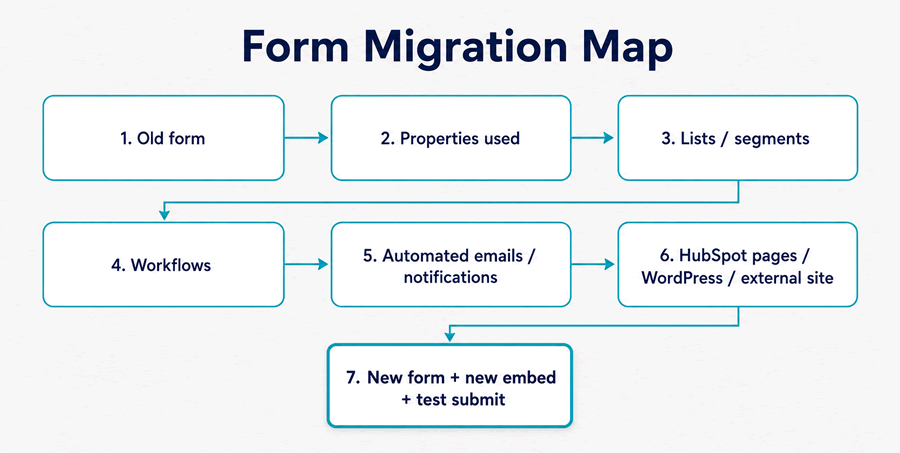
That is why forms and landing pages must be treated as business flows, step by step.
4.1. Migrating HubSpot Forms
For each active form, create a migration table. From OPTI's experience:
| Old form | New form | Real insertion point |
|---|---|---|
| Webinar Form | New form #ID1 | landing page, article, email |
| Newsletter Form | New form #ID2 | footer, pop-up, subscription page |
| Contact Form | New form #ID3 | Contact page, ads |
| Event Form | New form #ID4 | campaign page |
For each form, test:
- Required fields and custom properties
- Dropdowns and dynamic areas
- Submit, consent and GDPR
- The confirmation message, email or redirect
- Notifications, list enrollment, contact appearance with correct source
- Triggered workflows
4.2. Landing Pages and Website Pages
Landing pages need to be rebuilt in HubSpot or moved to an external resource like WordPress or the e-commerce site. The choice depends on traffic, subscription limitations and ease of future editing.
A practical method is dividing pages into three categories:
| Category | Recommended treatment |
|---|---|
| Active pages with traffic/conversions | full migration/rebuild and visual test |
| Recent pages, but with low traffic | rebuild as draft and publish after validation |
| Old pages with no value | archive or redirect to relevant pages |
For pages moved externally, keep a separate table with:
- Old and new URL, along with implementing the 301 redirect (for example from HubSpot redirects)
- Old and new form (if applicable)
- HubSpot design elements vs. environments like Elementor in WordPress
- Visual test results (screenshots), real results and results during migration
4.3. Embeds and Other Dependencies In/With External Websites
As mentioned above, the biggest risks are not inside HubSpot, but outside of HubSpot: in e-commerce, microsites, subdomains, old pages, event pages, catalogs, internal applications. These must be explicitly searched for:
- HubSpot snippets in external websites
- scripts in old HubSpot pages (the reverse direction)
- HubSpot code in Google Tag Manager
- buttons in emails or pages (CTAs) pointing to the old portal
5. Individual Checks: Workflows, Emails, Reports and Connected Applications
After the phased data transfer and avoiding the risks related to external resources, comes the most sensitive internal part of HubSpot: automations.
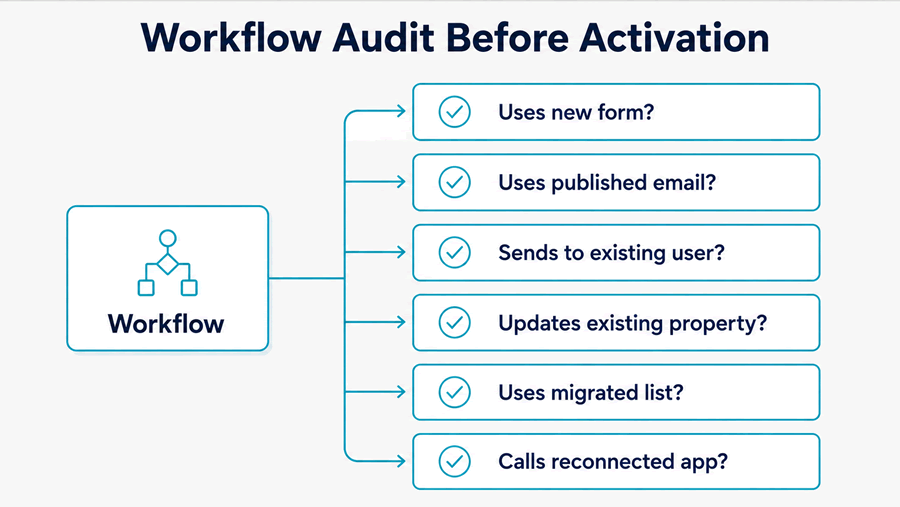
A wrong workflow can send inappropriate emails, modify properties it shouldn't, or call an application that is no longer connected. Business processes will stop working.
So for automations and workflows, the rule is simple. They migrate inactive, get verified 100%, and are turned on one by one.
5.1. Workflows
For each active workflow, check at minimum:
| Element | Check |
|---|---|
| Trigger | is the start condition identical? |
| Form | is the new form used in the trigger? |
| Lists | do lists exist and have the same definition? |
| Emails | are emails published or draft? |
| Notifications | do users exist in the new portal? |
| Properties | do all fields exist and have the same values? |
| Applications | do external actions have reconnected applications? |
| Re-enrollment | have the criteria been rebuilt/verified? |
| Testing | has the workflow been tested on a test contact? |
If you verify individually, you will not end up with a workflow failing because a sequence, segment or application does not yet exist in the new portal.
5.2. Marketing Emails
Migrated emails must be verified as communication pieces, not just technical assets, because they could have been forgotten in the old portal and accidentally become active in the new one.
In particular, check workflows that use them. If an email is no longer needed, archive it.
5.3. Reports and Dashboards
For reports, you need to ensure they can remain functional after migration. For example, if a critical report includes traffic data (which cannot be imported via Excel, nor via API, nor recreated manually), old reports will need to be archived and work in the new portal will start from scratch.
For each report:
- identify the report stakeholders and determine which reports are mandatory
- verify properties, filters and groupings
- compare old/new results for the same time period
- flag reports that cannot be recreated identically and must be archived
5.4. Connected Applications and Private Apps
Connected applications, if standard, can be recreated by the HubSpot account administrator. If custom, they often depend on the technical team that developed the connected external resource. Create a migration table, for example:
| Application | Type | Who reconnects it |
|---|---|---|
| HubSpot for WordPress | plugin/external site | WordPress admin |
| Facebook/Instagram | social | Marketing dept. |
| social | Marketing dept. | |
| Google Ads | ads | Marketing dept. |
| Typeform/Zoom/etc. | marketplace | Product owner |
| Private app | API | External developer |
Private applications are the most sensitive: tokens must be regenerated, scopes verified, and logs monitored after go-live.
And all these integrations can have effects on automations (e.g.: workflows):
6. Go-Live and the First 72 Hours: From DNS to the Point of No Return
The big launch (go-live) must be treated as a runbook where each step depends on the previous one. You typically set an operational freeze (when users become view-only so minimal new data enters), then execute the actual migration steps, then perform quick testing (smoke tests) and extended testing with ongoing corrections.
6.1. Domains and Email
For email marketing, the DNS settings recommended by HubSpot (DKIM, SPF and DMARC) must be correctly configured. If the sending domain is not authenticated, deliverability issues will arise or emails will appear suspicious to recipients.
Check:
| Area | What needs to be done |
|---|---|
| Content domain (CMS) | Connect domain/subdomain in the new portal |
| Email sending domains | DNS settings |
| Tracking domain | Tracking and link tracking settings |
| SSL | Active certificates on all used domains |
| Redirects | Old URLs point to new pages |
| From/Replyto | Addresses used in marketing emails are correct |
6.2. Tracking Code and Analytics
In external websites (e.g.: WordPress, e-commerce), the HubSpot tracking code from the new portal must be installed so that visits and actions are recorded correctly.
Pay special attention to any resource connected to the company, such as WordPress, Google Tag Manager, cookie banner/consent, GA4/GTM, Meta Pixel, Google Ads.
6.3. Go-Live Operations and Smoke Tests
We created a diagram with ten steps for a controlled go-live. Notably, many actions in the new portal must be done manually after data migration (migration and delta migration for differences). Depending on the specifics of the migration, there may be additional steps:
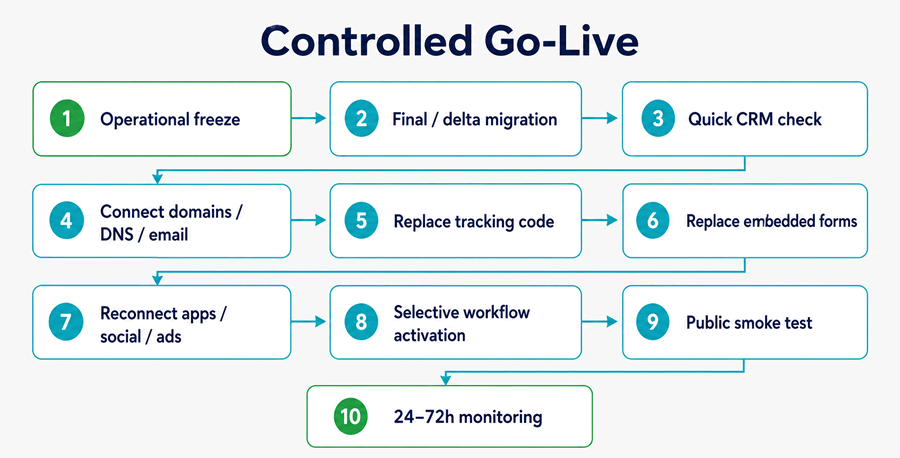
The point of no return is usually when you have executed smoke tests (global preliminary testing) and activate automations. From that moment there will be more new data in the new portal than in the old one, which continuously increases the cost of reverting to the old portal.
If you carefully applied the initial plan (from the inventory), smoke tests can confirm that everything is working. Here are a few real-world scenarios from experience that must be run end-to-end, even if just by sampling:
| Smoke test | What you check |
|---|---|
| Public form submission | contact created, properties, source, notifications, email |
| Newsletter subscription | list, consent, automated email |
| Event form | workflow, email, status, report |
| Sales contact | owner, lifecycle stage, task |
| Automated email | from, reply-to, unsubscribe, links |
| External application | sync, logs, webhook |
| Report dashboard | comparison with old portal |
6.4. Post-Migration Checks
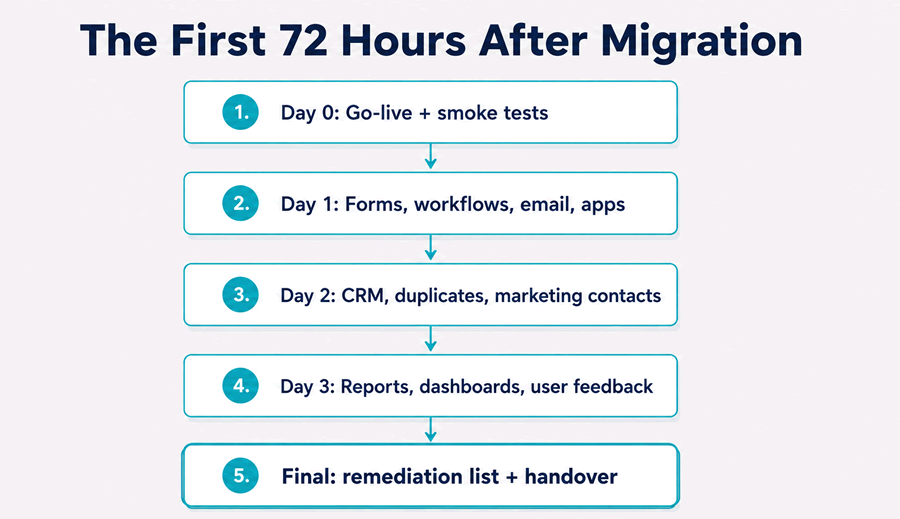
Even with the new portal live, the most real problems appear in the first 24-72 hours. Perhaps you forgot a form, perhaps someone is not receiving notifications, perhaps there are duplicates you did not detect. You need to provide elevated support in the period immediately after launch, when all team members must test and report issues to you.
Do not panic if things seem to accelerate once all the data enters the new portal. A few golden rules to keep in mind:
- You can follow the initial inventory to find out what is missing after migration
- The operational freeze helps you diagnose what you did not migrate (if you see new data entering the old portal)
- Prioritize checking contacts without email, companies without domain and other objects without data
- Check duplicates of all types and compare any list against those in the old portal
- A non-technical team member can find deep technical problems if they work through a business flow they know well.
Here is a 72-hour plan that can vary from project to project. It ends with the handover, when the normal team can manage the project on their own.
The Real Goal: Operational Continuity
A complete migration answers "Yes" to the question: can the team work well in the new portal? If data is moved, public forms submit to the new portal, workflows are functional and nobody complains even three months later, the project is a remarkable success.
What we have presented above is the simple idea that every migration is a mini-project of operational architecture. You start with the inventory and monitor the entire process of dozens of steps, including after go-live.
This elevated level of attention is the key to success and is ensured by the OPTI team in our migrations.